FixForge › Marine › Marine Electronics › Raymarine Axiom Keeps Rebooting
Raymarine Axiom Keeps Rebooting: Restart Loop Diagnostic
An Axiom that restarts at random, or cycles between the Raymarine and LightHouse splash screens without finishing, has two causes in Raymarine's power-up troubleshooting table: the power supply and connection, or corrupted software. Check power first. It is the cheaper fault and the reset that fixes the other one erases your data.
Last Updated: November 2026
Fast Answer
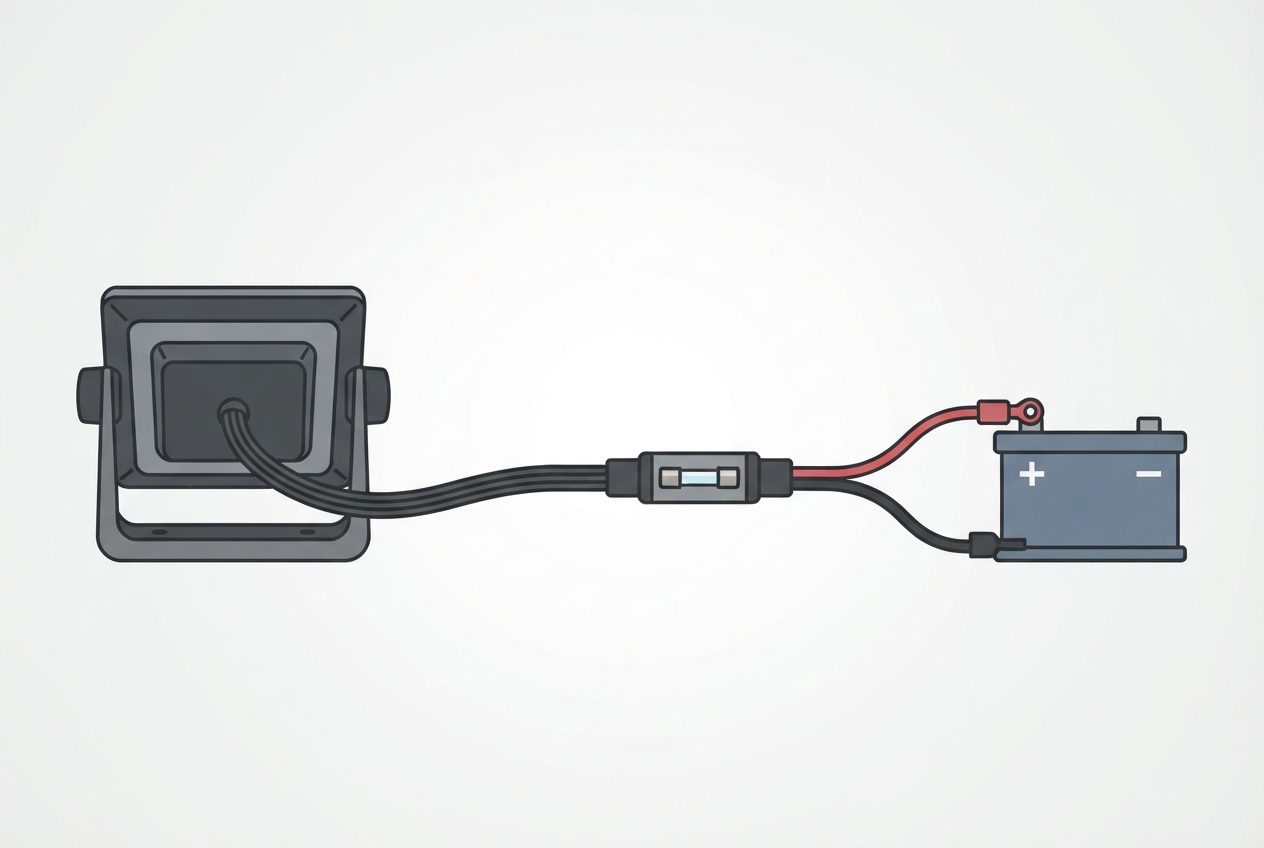
With the display running, flex the power cable gently near the display's connector and watch for a restart. Then measure voltage at the connector under load: Raymarine requires a continuous minimum of 10.8 V dc there. On a touch-only Axiom, read the power-swipe LED: one red flash per second means low voltage. If power is sound, install the latest software, and only then consider a Power On Reset, which deletes all settings and user data.
Raymarine's test: carefully flex the cable near the Power connector to see if the unit restarts or loses power.
Use a multimeter across all connectors and fuses while the display is running.
Touch-only Axiom: red flashing once per second is low voltage, twice per second is high voltage.
Corrupted software is the second listed cause. A Power On Reset is the last resort.
What Raymarine Lists as the Causes
Raymarine's power-up troubleshooting table has an entry for exactly this fault: "Product will not start up (restart loop)". It gives two causes. The first is the power supply and connection. The second is software corruption.
A separate entry, for frequent unexpected resets and system crashes, adds a third: a software mismatch between products on the system, where an upgrade is required.
Step 1: Power Supply and Connection
- Check the fuse or breaker. Raymarine notes that if the fuse keeps blowing you should check for cable damage, broken connector pins or incorrect wiring.
- Check that the power connector is correctly orientated, fully inserted and locked in position.
- With the display on, carefully flex the power cable near the display's Power connector. A restart or loss of power while you do this points to the cable or connector.
- With the display under load, use a multimeter to check for high voltage drop across every connector and fuse in the supply.
- Measure at the display end of the cable. Raymarine requires a continuous minimum of 10.8 V dc where the cable enters the product's power connector.
- Axiom and Axiom+ 7, 9 and 12: operating range 8 V dc to 16 V dc, 7 A inline fuse or thermal breaker. These are 12 V units; a 24 V vessel needs a voltage converter.
- Axiom Pro 9, 12 and 16: operating range 8 V dc to 32 V dc, 15 A fuse or breaker.
Step 2: Read the Status LED
Touch-only Axiom and Axiom+ displays show their state through the LED in the power-swipe area. Raymarine's LED diagnostics table reads:
- White: powered up normally.
- Red: standby.
- Blue: recovery mode.
- Red flashing once per second: low voltage.
- Red flashing twice per second: high voltage.
- Red and blue alternating: high temperature.
A low-voltage flash during a restart loop confirms the supply fault without a meter. A high-temperature indication points to ventilation around the display, not to wiring.
Step 3: Remove the Variables
Before any reset, Raymarine staff on the company's support forum have asked owners in this situation to try two things: remove the chart card, and disconnect the NMEA 2000 cable. They named a failing chart card and a third-party NMEA 2000 device sending invalid data as possible triggers, alongside poor power. If the display runs normally with either removed, you have found the cause without wiping anything.
Staff have also said they had reports of this behaviour on systems where settings were restored from a saved file after an update. If your loop began that way, set the display up by hand after the reset instead of re-importing the file.
Step 4: Software, Then Power On Reset
For the software-corruption cause, Raymarine's instruction is to download and install the latest software. If that fails, the table says to attempt a Power On Reset as a last resort, and warns that it will delete all settings, presets and user data.
Touch-only Axiom and Axiom+:
- Switch off at the breaker, or remove the power cable.
- Power on and, within approximately 10 seconds, swipe right to left 5 times across the Power button swipe area.
- Swipe right to left twice to highlight "Wipe data / factory reset".
- Swipe left to right once to accept the disclaimer, right to left once to highlight Yes, then left to right once to reset.
- At "Data wipe complete", swipe left to right to restart.
Axiom Pro:
- Power off at the breaker.
- Within approximately 10 seconds of powering on, press and hold the Back and Switch active buttons until the screen goes black and the Raymarine logo appears.
- Highlight "Wipe data / factory reset", press Ok and select Yes.
- At "Data wipe complete", select "Reboot system now".
When It Is Not a DIY Fix
If the display still loops with confirmed voltage at the connector, the chart card out, the NMEA 2000 cable off and a completed Power On Reset, the remaining causes are inside the unit. Raymarine's manual refers you to its technical support at that point.
Parts reference
| Part | Part number / spec | Notes |
|---|---|---|
| Axiom / Axiom+ power cable | R70523 (1.5 m, power and DeviceNet combined); R70561 (right-angled) | Replace if flexing the cable at the connector triggers a restart. |
| Axiom Pro power cable | R62379 (1.5 m, power, video and NMEA 0183); R70029 (right-angled) | Different connector from the touch-only Axiom. |
| Inline fuse | 7 A for Axiom and Axiom+; 15 A for Axiom Pro | Replace with the same rating only. |
Sources
Specifications, part numbers and procedures on this page come from the manufacturer documents below. Where a point comes from owner reports instead, the text says so.
- Raymarine LightHouse 4 Operation Instructions (81406): Power up troubleshooting
- Raymarine AXIOM+ Installation Instructions (87414): Miscellaneous troubleshooting
- Raymarine AXIOM+ Installation Instructions (87414): LED diagnostics
- Raymarine AXIOM+ Installation Instructions (87414): Performing a Power On Reset
- Raymarine AXIOM Installation Instructions (87298): Spares
The 1.5 m combined power and DeviceNet cable Raymarine lists as the Axiom and Axiom+ spare.
Check Price on Amazon →As an Amazon Associate, FixForge earns from qualifying purchases.