FixForge › Marine › Marine Electronics › Garmin ECHOMAP Software Update Won't Install
Garmin ECHOMAP Software Update Won't Install From the Card
Most failed ECHOMAP updates come down to the memory card or the order of steps, not the chartplotter. Garmin's manuals and support FAQs set specific rules for card size, format, folder layout and when the card goes in. If a normal update still fails, Garmin documents a forced update for each ECHOMAP family.
Last Updated: November 2026
Fast Answer
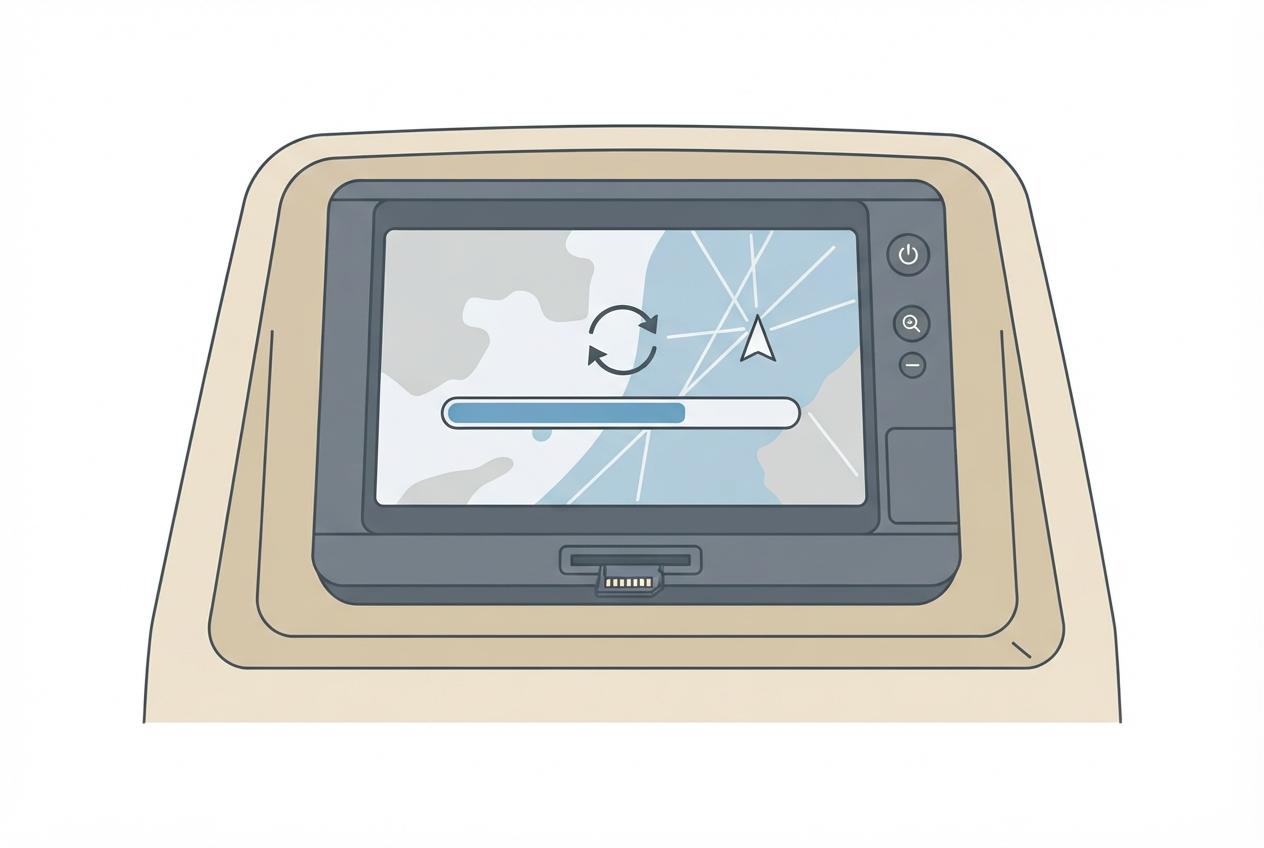
Use a blank card: 8 GB to 32 GB, FAT32, for ECHOMAP Plus and UHD. Turn the chartplotter on first and insert the card only after the home screen appears. The update prompt does not show if the card is in during boot. Select Install Now, Update Software, Yes, and leave the card in until the unit has fully restarted. If it fails, confirm power with a meter and run Garmin's forced update for your model.
ECHOMAP UHD: up to 32 GB, FAT32. Garmin Express wants 8 GB to 32 GB. Never a preloaded chart card.
The device must be fully booted before the card is inserted, or the update prompt will not appear.
If the card is removed before the device restarts fully, the software update is not complete.
Garmin's recovery loader sequence, different for each ECHOMAP family. Confirm power first.
Card Requirements by Model
- ECHOMAP UHD: supports up to a 32 GB microSD card, formatted to FAT32, speed class 4 or higher. Garmin recommends an 8 GB or larger card with speed class 10.
- ECHOMAP UHD2: as of software version 34.00, supports up to a 1 TB microSD card formatted to exFAT, speed class 10 or higher.
- ECHOMAP Ultra 2: as of software version 34.00, two microSD cards up to 1 TB, formatted to exFAT.
- Garmin Express update card (all): at least 8 GB but no more than 32 GB. Do not use a preloaded chart card.
If your UHD2 or Ultra 2 is still on software older than 34.00, treat it as a 32 GB FAT32 device until it is updated. Garmin's bundle notes for the echoMAP series give the same limits: FAT32, minimum 8 GB, maximum 32 GB, and the Garmin folder should be the only item on the card.
Use a blank card. Garmin warns that the update process erases the content on the card and reformats it. One owner-reported snag: Garmin Express rejecting a genuine 32 GB card as too large. The fix owners report is trying a different card.
Getting the Files On Correctly
There are three routes, and each has its own failure point.
- Garmin Express: writes the card for you. The download may take from a few minutes up to a few hours.
- Website download: on a PC the file must be unzipped. Garmin's FAQ is explicit that downloading the file directly to the card will not install. The Garmin folder must be the top-level folder on the card.
- ActiveCaptain app: in the app, Software Updates, Download. Then on the chartplotter, ActiveCaptain, Software Updates, Install Now.
The Install Sequence
- Turn the chartplotter on with no update card in the slot.
- After the home screen appears, insert the memory card.
- Select Install Now, Update Software, Yes.
- Wait. Garmin says it is not uncommon for an update to take 20 minutes or more. Do not disconnect or power off the device while the update is in progress.
- When prompted, leave the memory card in place and restart the chartplotter.
- Remove the card only after the unit has restarted fully.
Two lines from the manual explain the usual failures. First: in order for the software update instructions to appear, the device must be fully booted before the card is inserted. Second: if the memory card is removed before the device restarts fully, the software update is not complete.
On a networked system, power on all attached network devices before starting. To confirm the result, check Settings, System, System Information, Software Information.
Before Forcing an Update
Garmin's forced-update FAQ lists three checks first:
- Boot the device with no card in any slot. One or more bad cards can result in a device failing to boot up properly.
- Disconnect all network cables and restart.
- Verify power with a meter. Garmin says a forced update should only be done once adequate power to the device is confirmed.
Forced Update by Model
- ECHOMAP UHD 7x/9x and Plus 7x/9x: turn the device off. Hold the Power button and the number 4 button. Release Power when the Garmin logo appears. Release 4 when "Recovery Loader Ready" appears. Insert the software update card.
- ECHOMAP Plus 4x/6x: with the card inserted and the unit off, hold the Up Arrow while briefly pressing Power. Release the Up Arrow once the Garmin logo appears and the unit displays "Holding".
- ECHOMAP UHD2 and Ultra 2: with the device off, press and hold the power key for 5 seconds until the second long beep sounds. Insert the software update card after "Recovery Loader Ready" appears.
- ECHOMAP Ultra: hold the Power button until "Holding" or "Software Loading" appears, then insert the software update card.
If It Still Fails
Garmin's last line on the subject: if the device continues to have boot-up problems after troubleshooting, it will need to be replaced. Before reaching that conclusion, Garmin sells a pre-programmed update card for the echoMAP series, which removes your own card and download from the list of suspects.
Parts reference
| Part | Part number / spec | Notes |
|---|---|---|
| microSD card for the update | 8 GB to 32 GB, FAT32, speed class 10 recommended | Blank. The update erases and reformats it. |
| Garmin echoMAP series pre-programmed update card | Garmin 010-00427-05 | Garmin's own card with the current software loaded. |
Sources
Specifications, part numbers and procedures on this page come from the manufacturer documents below. Where a point comes from owner reports instead, the text says so.
- Garmin Support: Garmin Marine Device Software Updates
- Garmin Support: Performing a Forced Software Update on a Garmin Marine Device
- Garmin Support: Garmin Marine micro/SD Card Requirements
- Garmin ECHOMAP UHD Owner's Manual: Updating the Device Software Using a Memory Card
- Garmin ECHOMAP UHD Owner's Manual: Software Updates
Inside Garmin's 8 GB to 32 GB window for update cards. Format to FAT32 and keep it blank.
Check Price on Amazon →As an Amazon Associate, FixForge earns from qualifying purchases.