FixForge › Marine › Marine Electronics › Garmin ECHOMAP Transducer Not Detected
Garmin ECHOMAP Transducer Not Detected: Fix Guide
A Garmin ECHOMAP showing 'No Sonar', 'Sonar is not functioning', or no depth reading almost always has a connector pin corrosion issue, a transducer type mismatch in settings, or a cable damage issue. The 8-pin transducer connector on ECHOMAP units is particularly susceptible to green corrosion on the center pins in marine environments.
Last Updated: June 2026
Fast Answer
Unplug the transducer connector from the ECHOMAP, inspect the pins — green or white corrosion on the pins is the most common cause of 'no transducer' errors. Clean the connector pins with electrical contact cleaner and a soft brush, then reconnect. If pins are clean: go to Sonar > Sonar Setup > Transducer Type and confirm it matches your physical transducer (selecting the wrong type causes 'not detected' errors).
Green corrosion on the 8-pin transducer connector is the #1 cause. Clean with contact cleaner.
Sonar > Sonar Setup > Transducer Type must match physical transducer. Wrong selection = not detected.
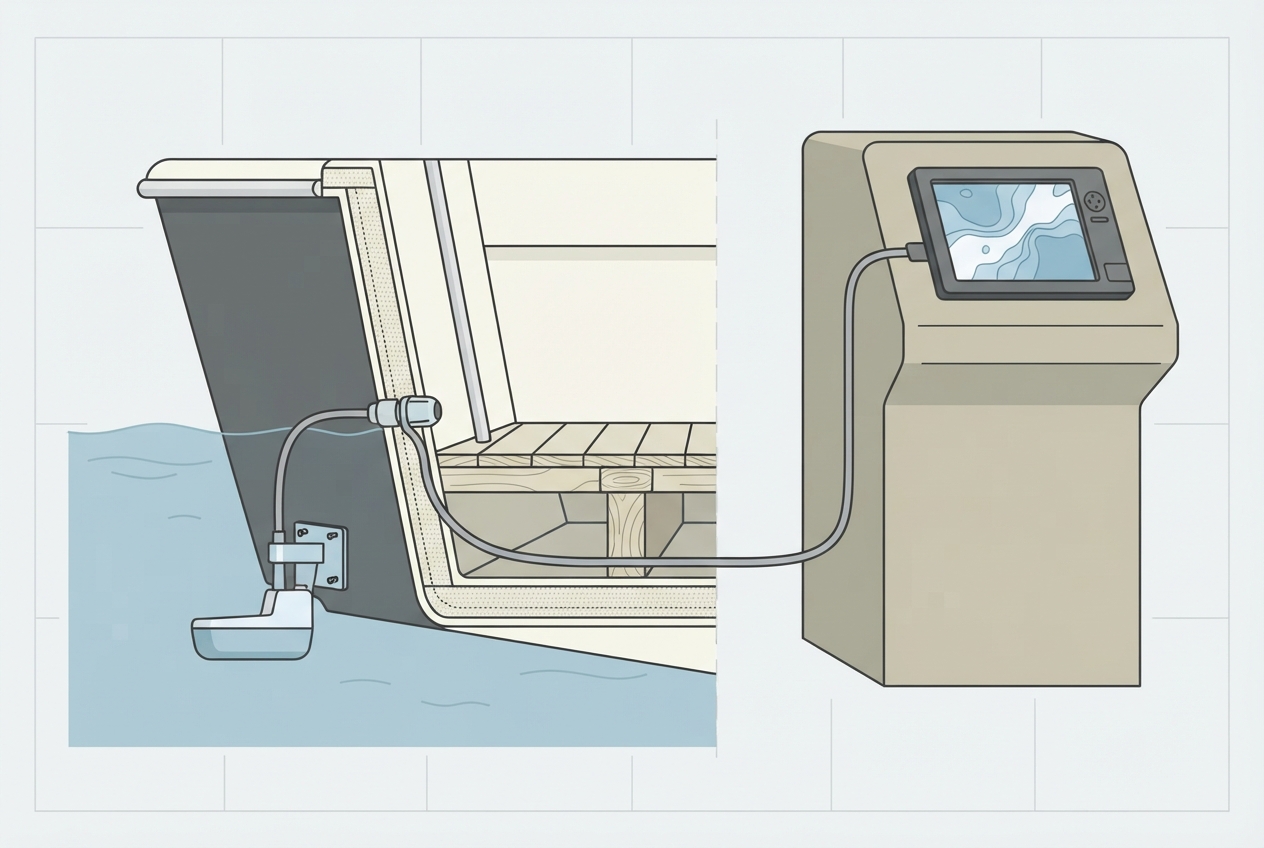
Look for kinks, pinches, or cuts in the cable — especially where it exits the transom mount bracket.
Multimeter between each connector pin and transducer element pins to isolate cable vs transducer.
Step 1: Connector Pin Inspection and Cleaning
The Garmin ECHOMAP uses an 8-pin round transducer connector. These pins corrode in salt air even when the connector is seated — salt migrates into the connector body over time. Green verdigris on the brass pins causes resistance high enough to prevent transducer detection.
- Unplug the transducer connector from the back of the ECHOMAP.
- Examine the male pins on the transducer cable side — look for green (copper corrosion), white (salt crystallization), or black (silver oxide) deposits.
- Apply a small amount of electrical contact cleaner to a soft brush (old toothbrush works well) and gently scrub the pins. Do not use sandpaper or abrasive material — you'll remove the plating.
- Let the connector dry completely (1–2 minutes), then reconnect firmly and twist to lock.
- Power on the ECHOMAP and check sonar page.
Step 2: Transducer Type Configuration
The ECHOMAP must be configured to match the physical transducer connected. If a previous owner installed a different transducer and changed the setting, or if a factory reset was performed without reconfiguring, the unit will report the transducer as not detected even with a working transducer connected.
- Navigate to: Sonar > Sonar Setup > Transducer Type (or may be under Settings > My Vessel > Transducer Type depending on firmware version).
- Check the current selection. Match it to what's physically connected — if you have a GT20 skimmer transducer, it must be set to GT20. If you have a GT52 CHIRP transducer, it must be set to GT52.
- If you don't know what transducer is installed: look for a model number printed on the transducer cable near the body, or search by the cable length and connector style.
Step 3: Cable Continuity Check
If the connector is clean and the type is configured correctly, check the cable itself for open circuits caused by damage.
- Set your multimeter to resistance (Ohms) mode.
- Probe between each pin on the transducer cable connector and the corresponding element pin at the transducer face end (with the transducer submerged in a bucket of water).
- A good transducer element will show 100–1000 Ohms between the signal pins (varies by transducer frequency). An open circuit (OL or infinite resistance) indicates a broken wire.
- Inspect the cable along its full length — especially where it exits the transducer bracket, where it routes through gunwale grommets, and anywhere it may have been pinched by a hatch or cover.
Step 4: Factory Reset Sonar Settings
If configuration data has become corrupted (possible after a firmware update or power interruption), a sonar settings reset can clear the issue without losing charts or waypoints:
- On the sonar page, tap Menu.
- Look for Sonar Setup > Reset Sonar Settings or Restore Defaults.
- After reset: reconfigure transducer type before testing.
Step 5: Unit Sonar Port Test
Connect a known-good transducer (borrow from another Garmin unit or a test loaner) to the ECHOMAP. If sonar works: your original transducer or cable has failed. If sonar still shows no detection: the ECHOMAP's sonar input port may have a damaged pin or internal fault. At this point, contact Garmin support — the unit may be eligible for flat-rate service.
Parts reference
| Part | Typical cost | Notes |
|---|---|---|
| Garmin GT20 skimmer transducer | $60–90 | Standard transom-mount for ECHOMAP series. 77/200kHz dual frequency. |
| Garmin GT52 CHIRP transducer | $130–180 | CHIRP upgrade for ECHOMAP. Better target separation and depth. |
| Electrical contact cleaner (CRC or similar) | $8–15 | Safe for plastic connectors. Evaporates without residue. Keep on the boat permanently. |
Standard 77/200kHz dual-frequency for ECHOMAP series. Direct replacement with correct Garmin connector.
Check Price on Amazon →As an Amazon Associate, FixForge earns from qualifying purchases.
Safe for plastic marine connectors. Removes corrosion from GPS and sonar connectors. Evaporates without residue.
Check Price on Amazon →As an Amazon Associate, FixForge earns from qualifying purchases.